
We’ve all been there: you open up an account settings page, excited to just get something done, and BAM—you’re hit with a wall of technical mumbo-jumbo. Reading standard tech guides about two-factor authentication usually feels like listening to an engineer recite an instruction manual through a megaphone. They throw around corporate buzzwords, acronyms, and dry lectures about compliance until your brain just completely turns off.
Let’s toss all of that directly into the trash. Securing your digital life isn’t rocket science, and it definitely shouldn’t feel like a soul-crushing chore.
Imagine we’re grabbing a coffee together and you ask me how to lock down your accounts without losing your mind. Here’s how I’d break it down for you—no scripts, no fluff, just honest, real talk.
We’ve all been there: you open up an account settings page, excited to just get something done, and BAM—you’re hit with a wall of technical mumbo-jumbo. Reading standard tech guides usually feels like listening to an engineer recite an instruction manual through a megaphone. They throw around corporate buzzwords, acronyms, and dry lectures about compliance until your brain just completely turns off.
Let’s toss all of that directly into the trash. Securing your digital life isn’t rocket science, and it definitely shouldn’t feel like a soul-crushing chore.
Imagine we’re grabbing a coffee together and you ask me how to lock down your accounts without losing your mind. Here’s how I’d break it down for you—no scripts, no fluff, just honest, real talk.
The Front Door Reality Check
Think about your front door key for a second. If a shady neighbor swipes your key or makes a sneaky copy while you aren’t looking, they can waltz right into your living room whenever they feel like it.
Your password is that single front door key. We all reuse them, we pick phrases that are easy to remember, and every couple of months some massive multi-billion-dollar company gets hacked and leaks millions of passwords all over the dark web. Relying on just a password today is like locking your front door with a cheap plastic latch.
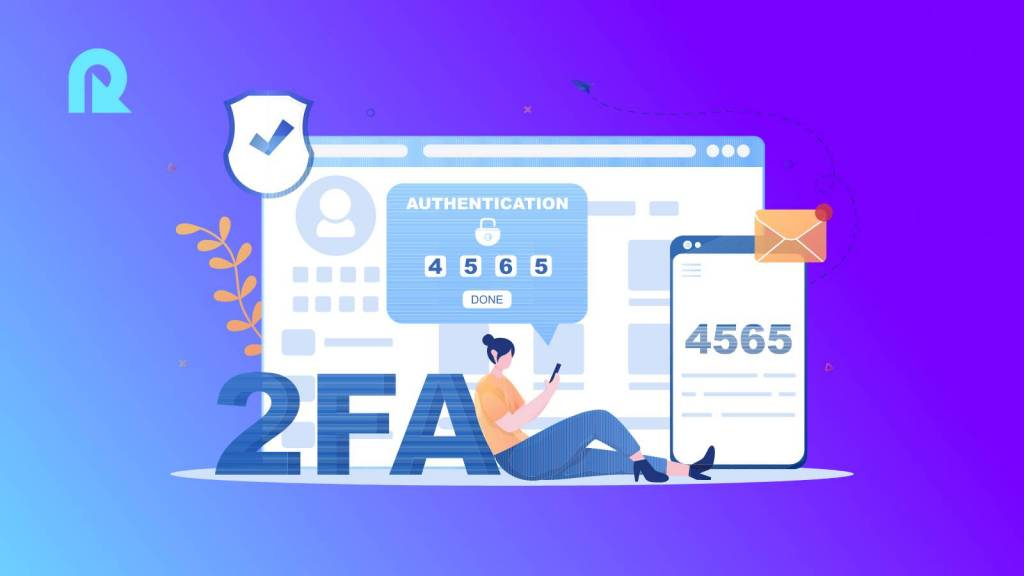
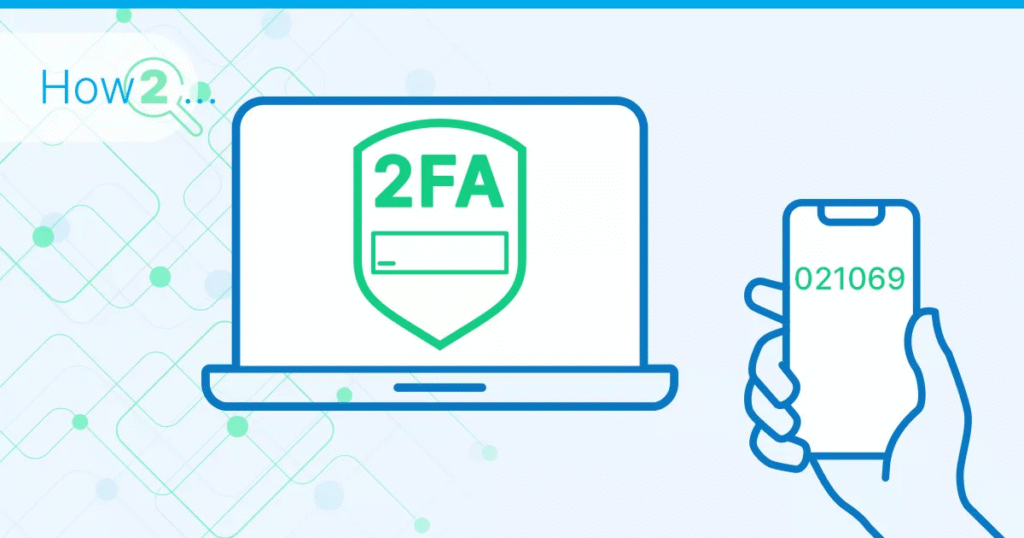
Two-factor authentication (2FA) is literally just installing a heavy-duty deadbolt right above that door handle. Even if a scammer steals your main key, they’re still stuck standing out on the porch in the rain because they don’t have the key to the deadbolt.
Where is that second key? It’s sitting right in your pocket on your personal phone. Even if a hacker halfway across the world buys your password off a leaked database, they hit a solid brick wall the second they try to sign in.
The Three Ways Sites Check Who You Are
When an app asks for 2FA, it’s not trying to annoy you—it just wants two different pieces of proof before unlocking the door. Think of it like a bouncer at a club checking two separate IDs:
- Something you know: Your password, a secret PIN, or a swipe pattern you draw.
- Something you have: Your physical phone, a little USB security key, or an authenticator app.
- Something you are: Your fingerprint or your face unlocking your screen.
Here’s the golden rule that a lot of people miss: real protection only works if you mix two different categories.
Typing a password and then answering “What was the name of your childhood pet?” isn’t true two-factor authentication. Those are just two things you know. A persistent scammer can easily figure out your first dog’s name after scrolling through your old social media posts for five minutes. But pairing a password (something you know) with a live code on your physical phone (something you have)? That’s what stops intruders cold.
Picking Your Style (Without Driving Yourself Crazy)
You’ve got choices when turning this on, and they don’t all feel the same in your day-to-day life:
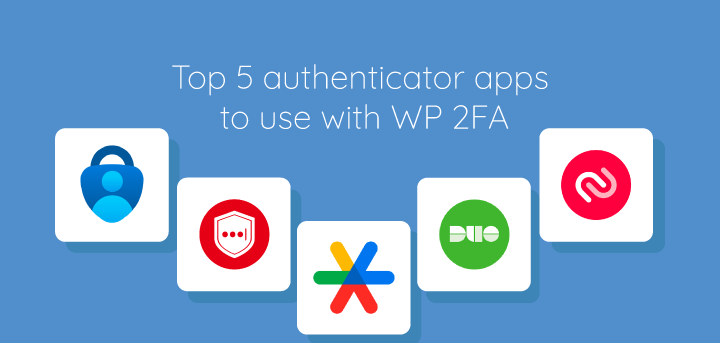
- Authenticator Apps (The Golden Standard): Apps like Google Authenticator or Authy spit out a fresh 6-digit code every 30 seconds. They’re free, fast, don’t need a cellular signal, and completely shut down online scammers.
- Passkeys & USB Keys (Fort Knox Mode): Physical USB keys (like a YubiKey) you plug in, or using your phone’s built-in Face ID. It’s essentially un-hackable—perfect for crypto wallets or your main work email.
- SMS Text Messages (Better Than Nothing): The site texts a short code straight to your phone number. It’s convenient, but cellular networks weren’t built for high security, making text codes vulnerable to sneaky “SIM-swapping” scams.
My Personal Rule of Thumb: If a site gives you the option, always pick an Authenticator App over SMS text codes. It takes two seconds to scan and gives you infinitely better peace of mind.
How to Turn It On Anywhere (The 5-Step Rhythm)
While every app hides its buttons in different menus, the setup dance is identical whether you’re locking down Instagram, Amazon, or your bank:
- Find the Lock Box: Log in, tap your profile picture in the corner, and head to Settings. Look for Security, Privacy, or Password & Sign-In, then click Two-Factor Authentication.
- Pick “Authenticator App”: Choose Authenticator App as your primary method. If you don’t have one yet, download a free app like Authy or Google Authenticator from your phone’s app store.
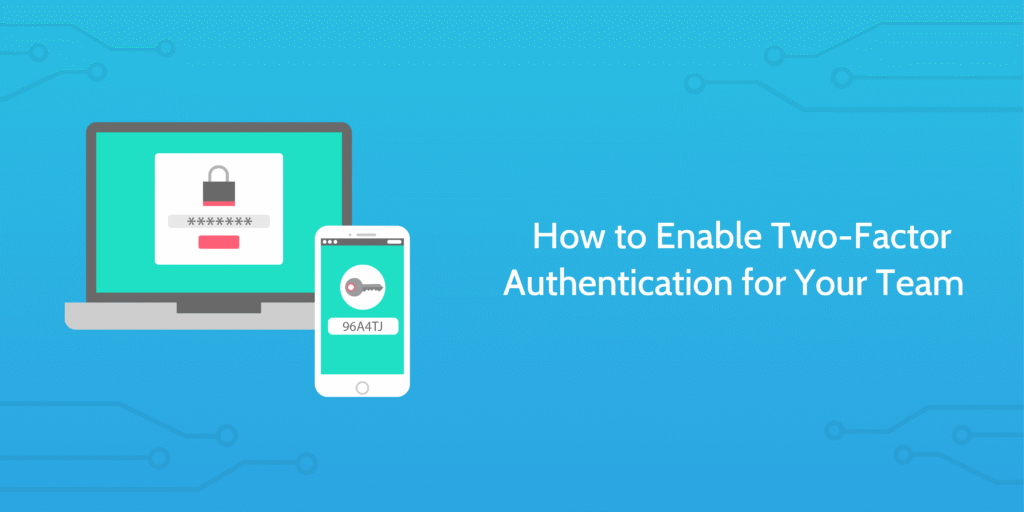
- Point and Scan: The site will show a square QR code on your computer screen. Open your app, tap the
+sign, hit Scan QR Code, and point your phone camera at the screen. - Type the Test Code: Your phone app will start spinning out a 6-digit code with a tiny timer. Type that number into the website box to prove both devices are talking to each other.
- SAVE THE BACKUP CODES! Seriously, do not skip this step! The site will hand you a list of emergency codes. If your phone takes a swim in the ocean or gets lost, these codes are your only spare key back in. Write them down or save them somewhere safe.
Quick Real-World Setup Examples
Every app puts its security settings in a slightly different place, which can make Two-Factor Authentication feel more complicated than it actually is. But don’t worry—the basic idea is pretty much the same everywhere. Here’s what the process looks like on a few accounts you probably already use.
Setting It Up on Google/Gmail
- Sign in to your Google Account and head over to Security.
- Look for 2-Step Verification and click on it.
- Google will walk you through the setup. You can connect an authenticator app or choose another verification option that’s available to you.
- Once you’re done, save those backup codes somewhere safe. Future-you will be very grateful if you ever lose access to your phone.
Setting It Up on Instagram
- Open Instagram and go to Settings and activity.
- From there, head into Accounts Center → Password and security.
- Tap Two-factor authentication and choose the Instagram account you want to secure.
- Pick your preferred verification method and follow the prompts. Once it’s switched on, Instagram will ask for that extra proof when it needs to verify a login.
Setting It Up on Microsoft
- Sign in to your Microsoft Account and open the Security section.
- Look for Two-step verification and start the setup.
- If you use Microsoft Authenticator, follow the instructions to connect the app to your account.
- Finish the verification process and make sure you’ve saved your recovery information somewhere you can actually find it later.
Setting It Up on WhatsApp
- Open WhatsApp and go to Settings → Account → Two-step verification.
- Tap Turn on and create a PIN that you can remember but other people won’t easily guess.
- WhatsApp may also ask you to add a recovery email. It’s worth doing—it gives you another way to regain access if you forget your PIN.
- And one golden rule: never share your WhatsApp verification code or PIN with anyone, even if they claim they’re from WhatsApp.
The Stuff Everyone Secretly Worries About
- “Won’t this slow me down every single time I log in?”
Not at all! Almost every site has a little checkbox that says “Trust this device for 30 days” or “Remember this browser.” You usually only type in a code when logging in from a brand-new computer, a weird location, or after clearing your browser history. - “What if I lose or break my phone?”
That’s precisely why we saved those emergency Backup Codes in Step 5! As long as you kept those safe, you just type one in, get right back into your account, and link your replacement phone in two minutes. - “Why would anyone bother targeting my personal account?”
Scammers aren’t usually sitting at keyboards writing custom attacks for normal everyday people. They use automated software bots that test millions of leaked email-and-password combos across the web simultaneously. Enabling Two-Factor Authentication makes your account completely invisible to those massive net sweeps.
3 Golden Rules to Keep Life Smooth
- Treat emergency backup codes like cash: Don’t leave them sitting in a plain text file named
passwords.txton your desktop. Keep them in a secure folder or a password manager. - Ignore surprise pop-ups: If your phone pops up out of nowhere asking you to confirm a login while you’re lying on the couch watching TV—hit deny immediately. That means someone managed to guess your password and is trying to push through. Change your password right after.
- Lock down your primary email address first: Your main email is the front door to your entire digital identity. If a scammer gets in there, they can just click “Forgot Password” on every other site you use. Secure your main email with Two-Factor Authentication first, and the rest of your digital house instantly stays much safer.
FAQ’S
Q: Won’t Two-Factor Authentication slow me down every single time I sign in?
Nope! Most sites let you check a “Remember this device for 30 days” box so you only type a code on new computers or after clearing your browser.
Q: What if I lose my phone or drop it in water?
That’s why you grab those backup recovery codes during setup—typing one of those in gets you right back into your account in seconds.
Q: Why are text message codes suddenly considered unsafe?
networks weren’t built for security, and scammers can trick phone carriers into swapping your number to their device.Authenticator apps keep the codes locked to your actual phone hardware instead.
Q: Why would a hacker care about my little account anyway?
Most attacks aren’t personal; automated bots test millions of stolen passwords simultaneously, and 2FA makes your account invisible to those net sweeps.
Q: What should I do if a random sign-in code pops up on my phone?
Hit “Deny” immediately—it means someone figured out your password. Decline the prompt and change your password right away.